The right picture, without leaving the editor
Search photos and illustrations from libraries that allow commercial use, browse 2,000 icons, reuse your uploads or pick images from your OfficeBats Drive. AI suggests searches that fit the slide.
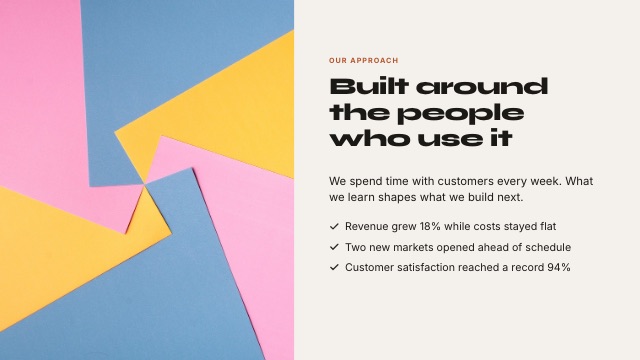
Photos with the right credit
Photos are copied into your library when you use them. When a licence asks for a credit, SlidesBat adds it to the image automatically.
- Commercial use allowed
- Credits added when needed
- Wide or tall results
Icons that match the theme
2,000 clean line icons that take the slide colours and stay sharp at any size.
- Search by name or topic
- Recolour in one click
- Replace an icon in place
Your own images
Upload images and short videos or choose them from your OfficeBats Drive. Crop, zoom, apply filters, round corners or make a circle.
- Drag and drop uploads
- Filters and crop
- Paste an image straight onto a slide
How it works
- 1
Open the library
Image button in the editor.
- 2
Search or browse
Photos, illustrations, icons, uploads or Drive.
- 3
Click to add
Then crop and style it.
Questions
Can I use the photos commercially?
The libraries used allow commercial use. Some photos ask for a credit, which SlidesBat adds for you.
Do AI photo ideas cost credits?
A few. It reads the slide and suggests searches.
Where are my uploads stored?
In your private SlidesBat media library, with a copy in your OfficeBats Drive.
Can I upload video?
Yes, MP4 and WebM files, or embed a YouTube or Vimeo link.
Is there a size limit?
Free uploads can be up to 10 MB each, Pro up to 40 MB.
Related features
- Slide editorA full slide editor in your browser: drag, resize, rotate, snap, align, group and lock. Rich text, shapes, icons, images, charts, tables, video and code blocks.
- Flyers, one-pagers and social postsThe same editor for print and social: Letter and A4 flyers, posters, one-pagers, square posts, stories and portrait posts, with themes, photos and AI help.
- AI presentation makerDescribe your talk or upload a Word, PDF or Markdown file. SlidesBat writes an outline you can edit, then designs every slide with real layouts, photos and notes.

Make your next deck in minutes
Free to start. No credit card. One OfficeBats account for every Bats app.