A real slide editor, right in your browser
Everything you expect from desktop presentation software: precise positioning with snap guides, rich text, shapes, charts with editable data, tables, icons, photos and video. It works on a laptop, a tablet and a phone.
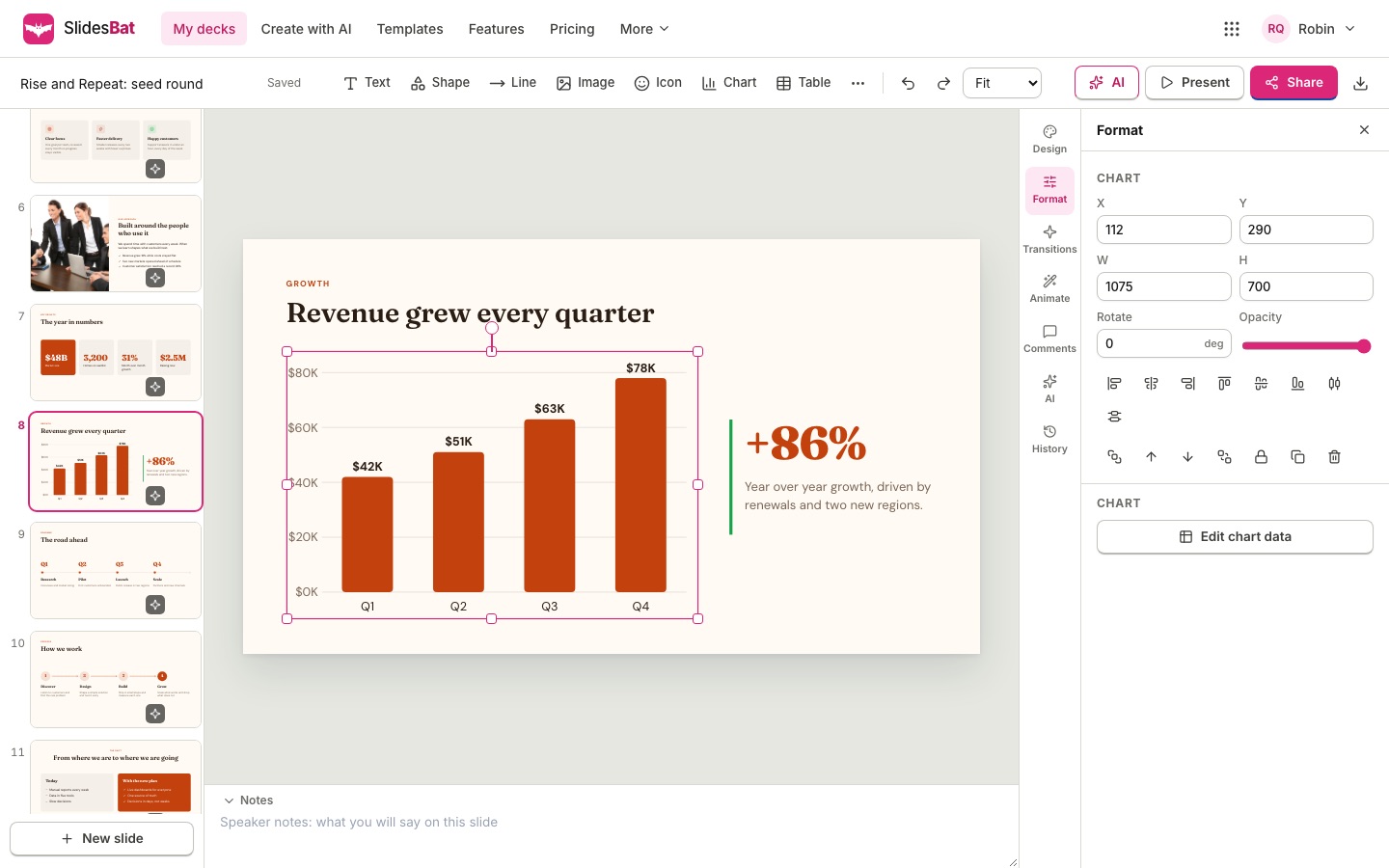
Move things exactly where you want them
Drag, resize from any of eight handles and rotate with a dedicated handle. Snap guides line items up with each other and with the slide edges and centre. Hold Shift to keep proportions or snap rotation to 15 degrees.
- Align and distribute
- Group, lock and change order
- Arrow keys nudge by one or ten pixels
Text that looks designed
Use the theme's heading and body fonts or any of 40 curated Google Fonts. Bold, italic, underline, colour, highlight, lists, line spacing, alignment and text styles such as Title, Heading, Body and Big number.
- Double click to type
- Shrink text to fit a box
- Links inside text
Charts, tables and more
Add column, bar, stacked, line, area, pie, donut and radar charts and edit their data in a grid, or paste it from a spreadsheet. Insert tables, 30 shapes, lines and arrows, 2,000 icons, photos, YouTube or Vimeo videos and code blocks.
- Chart data stays editable
- Tables with rows and columns
- Image crop, filters and replace
Safe to experiment
Every change saves automatically. Undo and redo go back as far as you need, and version history keeps snapshots of the whole deck that you can preview and restore.
- Autosave
- Undo and redo
- Version history
How it works
- 1
Open a deck
Start blank, from a template or with AI.
- 2
Edit on the canvas
Click to select, double click to type.
- 3
Present or share
Show it full screen or send a link.
Questions
Does it work on a phone?
Yes. On small screens the slide list moves under the canvas and the panels open as sheets, so you can edit on the go.
Can I copy between slides?
Yes. Copy and paste works across slides and even across decks in the same browser.
Are there keyboard shortcuts?
The usual ones: Ctrl or Cmd with C, X, V, D, Z, G and A, arrows to nudge, Delete, Enter to edit text and F5 to present.
Can I change the slide size?
Decks can be 16:9, 4:3 or a custom size. One-pagers, flyers and social posts have their own sizes.
What about master layouts?
Each slide can switch to any of 20 layouts, and the theme sets colours, fonts and decoration for the whole deck at once.
Related features
- Transitions and animationsFade, push, wipe, cube, flip, gallery, page turn, magic move and more, plus entrance, emphasis, exit and motion path animations with an animation pane and timing.
- Templates and themesOriginal templates for pitch decks, business reviews, marketing, lessons, reports, portfolios, weddings and more. Each theme includes 20 layouts and a theme editor.
- PowerPoint, PDF and PNG exportDownload decks as PowerPoint files with real, editable text, shapes, tables and charts, as crisp PDFs, or as PNG images. Memos export to PDF and Word.

Make your next deck in minutes
Free to start. No credit card. One OfficeBats account for every Bats app.